Statlas Ads
Welcome to Statlas Ads — your end-to-end platform for planning, ordering, reviewing, and deploying advertising creatives with your design partners.
Overview
Statlas Ads streamlines the entire ad production workflow, from initial planning through final deployment. Whether you're coordinating a major holiday campaign or a quick product launch, Statlas keeps everyone aligned and assets moving.
Key Features
- Ad Planning — Forecast and track ad needs across marketing moments
- Batch Ordering — Submit organized requests to your creative partners
- Request Tracking — Monitor production status in real-time
- Asset Review — Approve, reject, or request revisions on delivered creatives
- Revision Management — Collaborate directly with designers on feedback
- Auto-Deployment — Approved ads are automatically built and provisioned with shareable links
Getting Started
Planning Your Ads
The Moments Ads Planning screen is your central hub for forecasting ad needs across all your marketing moments.
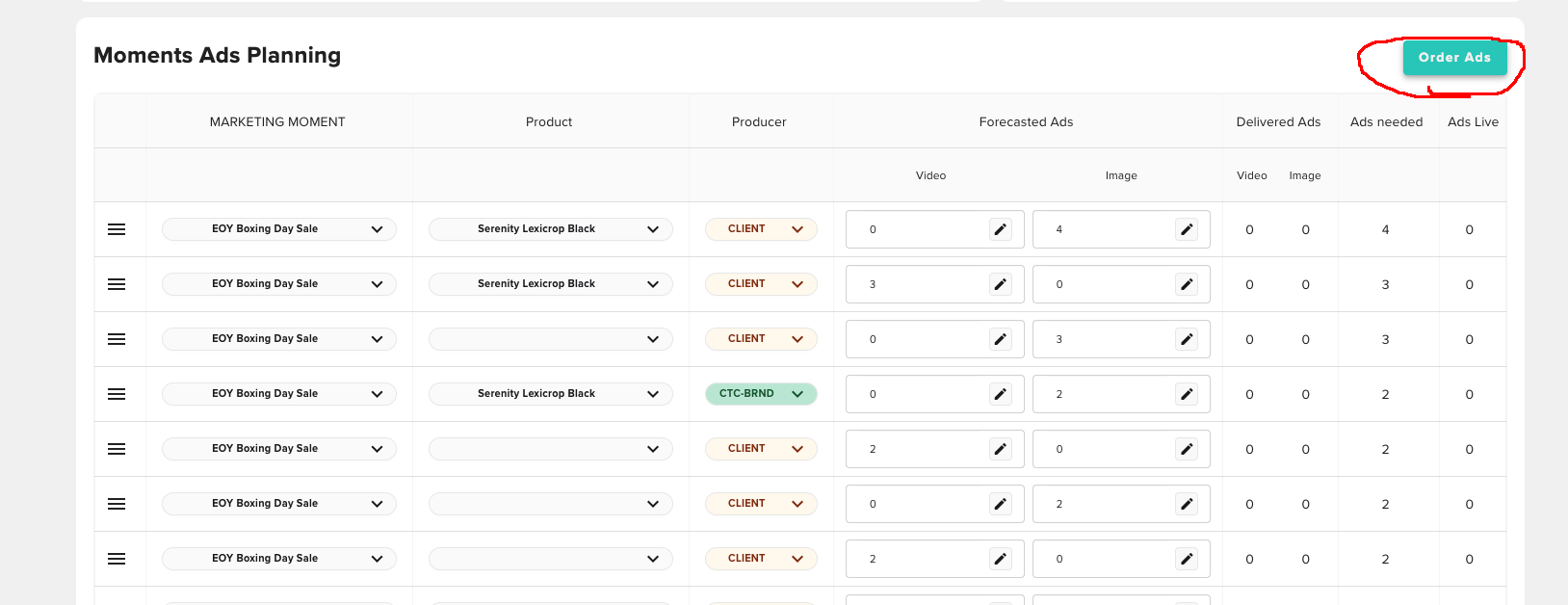
From this view, you can:
- See all upcoming marketing moments (e.g., "EOY Boxing Day Sale")
- Track forecasted ads by type (Video and Image)
- Monitor delivered ads versus what's still needed
- View which ads are currently live
- Assign producers (Client, Agency, etc.)
When you're ready to order ads for a specific moment, click the Order Ads button in the top right corner. This will pre-populate your request form with the relevant details.
Creating Ad Requests
The Create Ad Request form allows you to submit batch orders to your design partners.
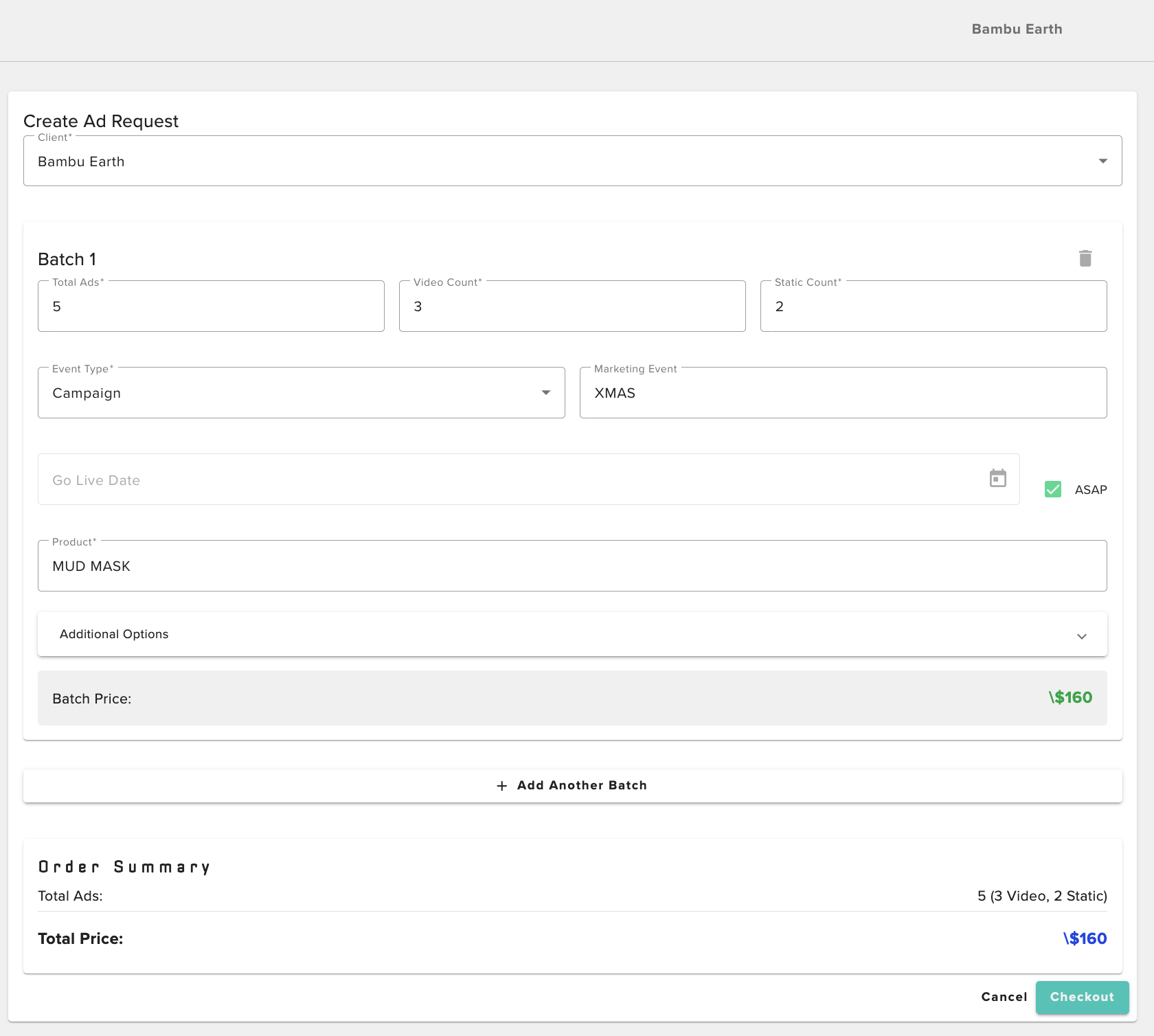
Batch Configuration
Each batch represents a group of ads tied to a specific event and product. For each batch, you'll specify:
| Field | Description |
|---|---|
| Total Ads | The total number of ad creatives needed |
| Video Count | How many of those ads should be videos |
| Static Count | How many should be static images |
| Event Type | The type of marketing initiative (e.g., Campaign, Product Launch) |
| Marketing Event | The specific event name (e.g., XMAS, BFCM, Boxing Day Sale) |
| Go Live Date | Target launch date, or check ASAP for urgent requests |
| Product | The product being advertised |
Pricing and Submission
The Batch Price is calculated automatically based on your selections. You can add multiple batches to a single order by clicking + Add Another Batch.
The Order Summary at the bottom displays your total ad count and price across all batches. When ready, click Checkout to submit your request to the design team.
Tracking Your Requests
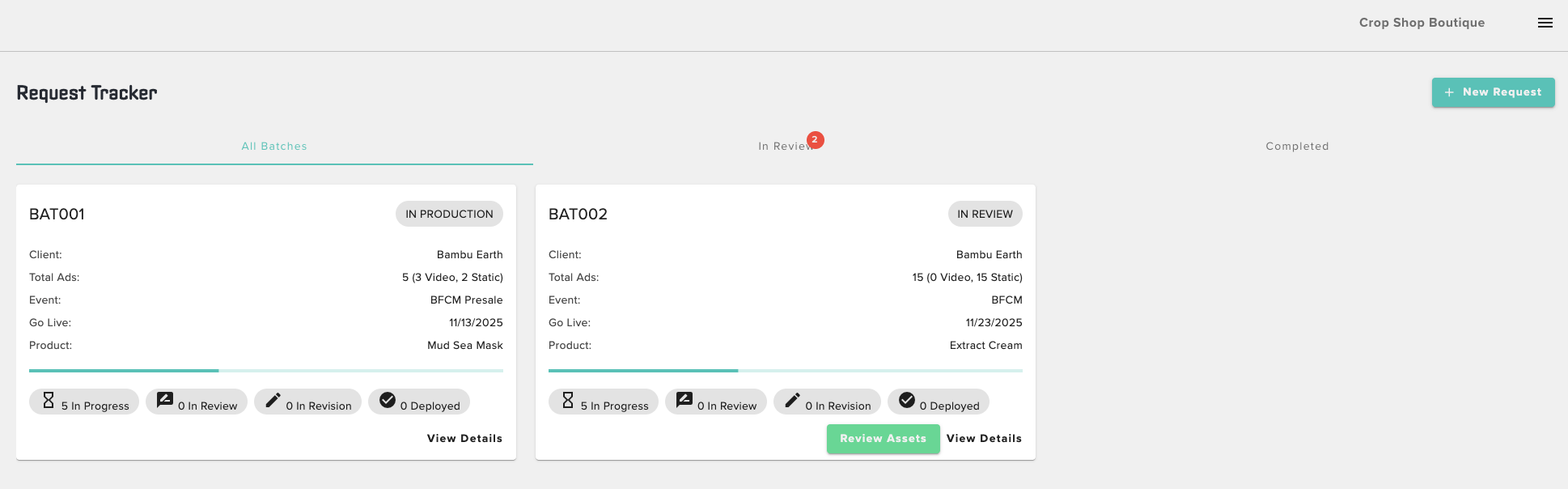
The Request Tracker gives you visibility into all your batch orders and their current status.
Filtering Requests
Use the tabs to filter your view:
- All Batches — See everything
- In Review — Batches awaiting your approval (badge shows count)
- Completed — Finished and deployed batches
Batch Cards
Each batch card displays:
- Batch ID (e.g., BAT001, BAT002)
- Status Badge — IN PRODUCTION, IN REVIEW, or COMPLETED
- Client Name
- Total Ads with breakdown (Video vs. Static)
- Event Name
- Go Live Date
- Product Name
Progress Indicators
Track exactly where each ad stands in the pipeline:
- In Progress — Currently being created
- In Review — Awaiting your feedback
- In Revision — Being updated based on feedback
- Deployed — Live and ready to use
Click View Details to see the full batch, or Review Assets when creatives are ready for your approval.
Reviewing Assets
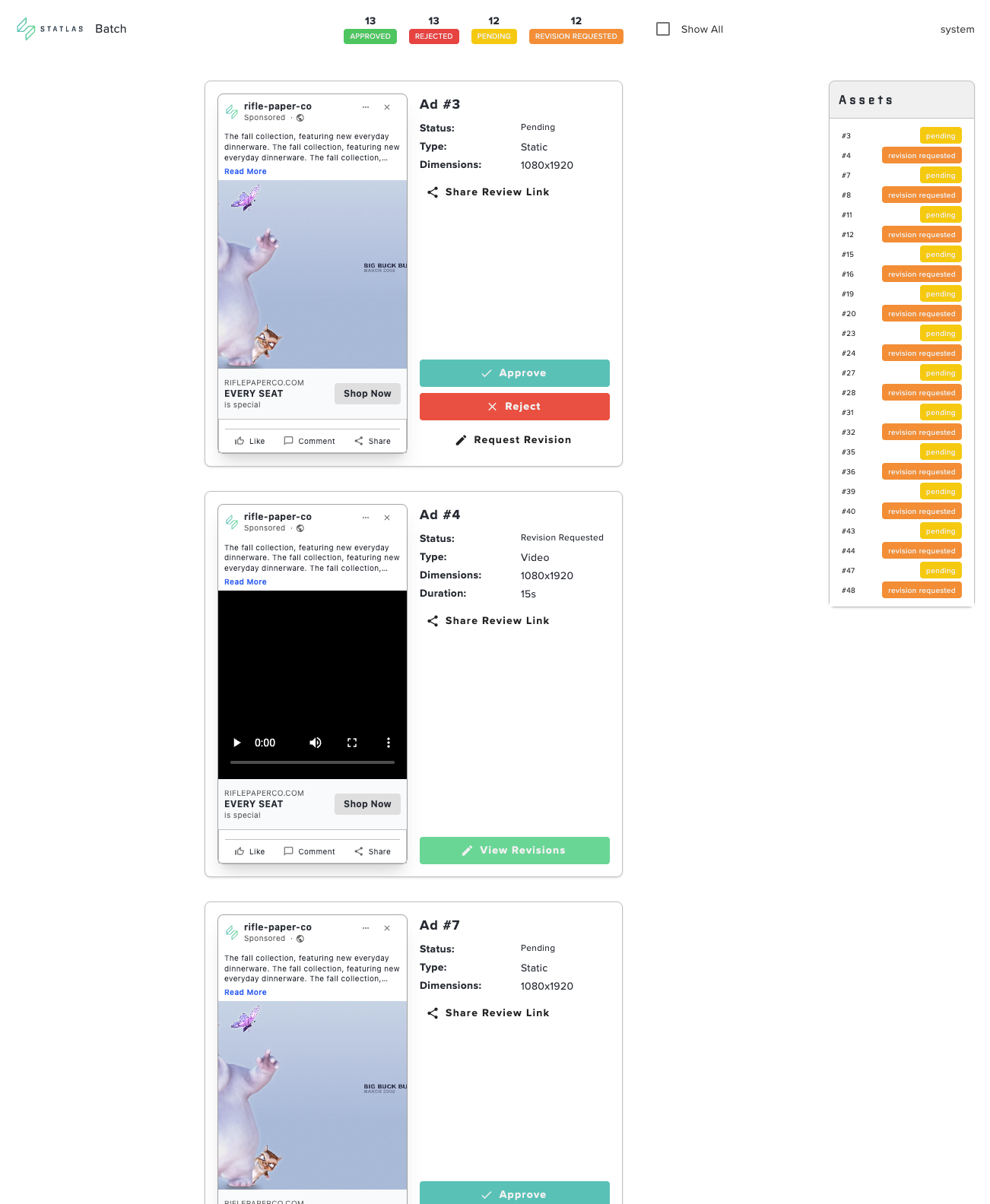
When your design partner completes a batch, you'll be notified and can access the Batch Review screen.
Status Overview
The top bar shows a real-time count of assets by status:
- 🟢 Approved — Ready for deployment
- 🔴 Rejected — Will not be used
- 🟡 Pending — Awaiting your review
- 🟠 Revision Requested — Sent back for changes
Reviewing Individual Ads
For each ad, you'll see:
- Preview — Visual mockup of how the ad will appear
- Ad Details — Status, Type (Static/Video), Dimensions, Duration (for video)
- Share Review Link — Send to stakeholders for external feedback
Taking Action
For each pending asset, you have three options:
- Approve — Accept the creative as-is; it will be queued for deployment
- Reject — Decline the creative entirely
- Request Revision — Send back with specific feedback for changes
The Assets panel on the right provides a quick overview of all assets in the batch with their current status, allowing you to jump to any specific ad.
Managing Revisions
When you request a revision, the Revision Requests screen enables direct collaboration with your creative partner.
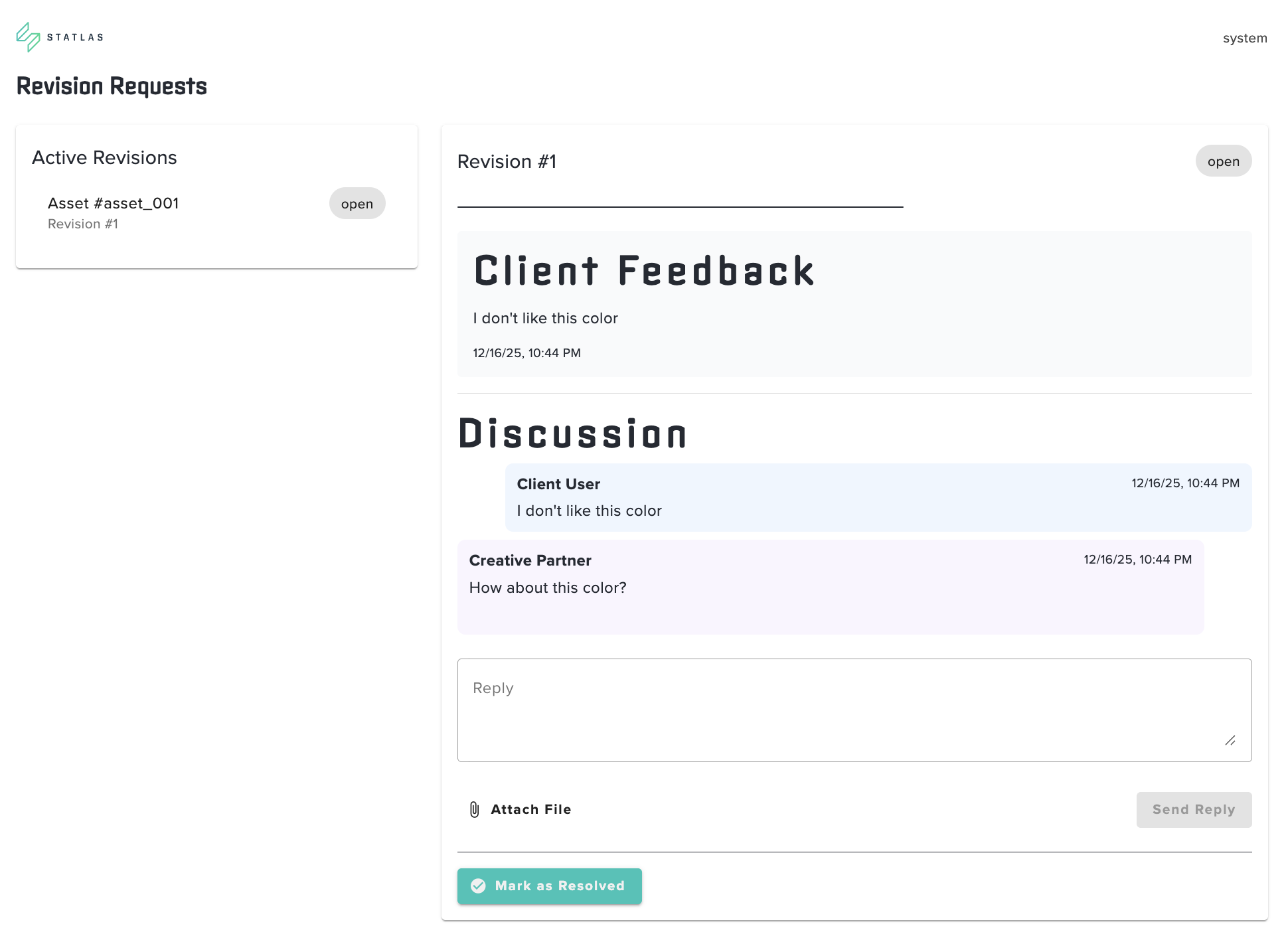
Active Revisions
The left panel lists all assets with open revision requests. Each entry shows the asset ID and revision number.
Revision Details
Selecting a revision displays:
- Client Feedback — Your original feedback with timestamp
- Discussion Thread — Back-and-forth conversation between you and the creative team
Collaborating on Changes
Use the discussion thread to:
- Clarify your feedback
- Respond to questions from the design team
- Attach reference files using Attach File
- Send replies with Send Reply
When the revised asset meets your requirements, click Mark as Resolved to close the revision request. The asset will return to your review queue with the updated creative.
After Approval
Once you approve an ad, Statlas automatically:
- Builds the final ad creative
- Provisions a unique, shareable link
- Notifies you that the asset is ready
You can then use these links to deploy ads to your marketing channels or share with your team.
Workflow Summary
Need Help?
If you have questions or run into issues, reach out to your account manager or contact support at support@statlas.com.